Personalized QR cards, one per rep
Every Drive AI rep gets a custom-designed QR card with their name, role, and a scannable QR pointing to their personal landing page (driveaisales.com/r/[rep-id]). The scan opens a mobile page where prospects can save the rep's contact, send a pre-filled text, and watch a 90-second demo. This is Stage 2 of the Sales Process, physical artifact form.
Download your PDF below, send to your local print shop, hand them out at every dealership visit. Don't lose them.
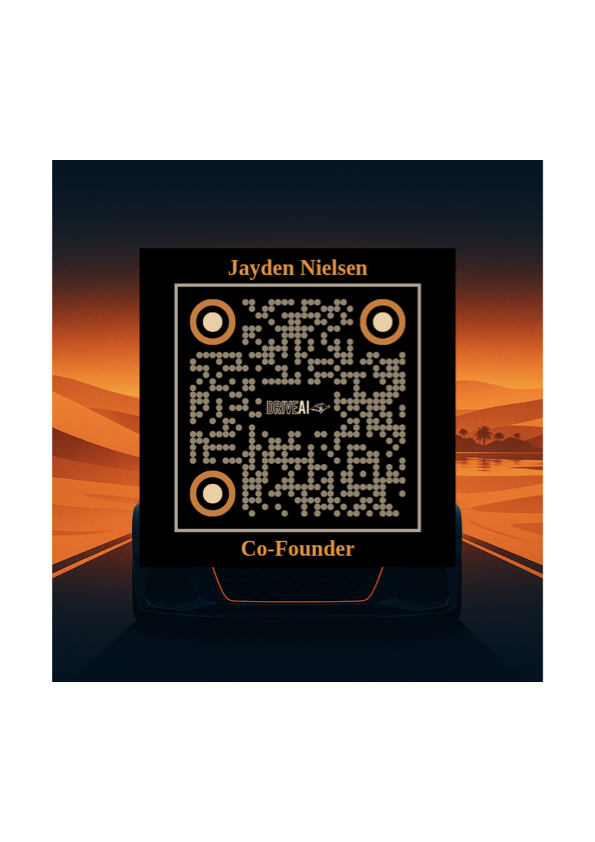
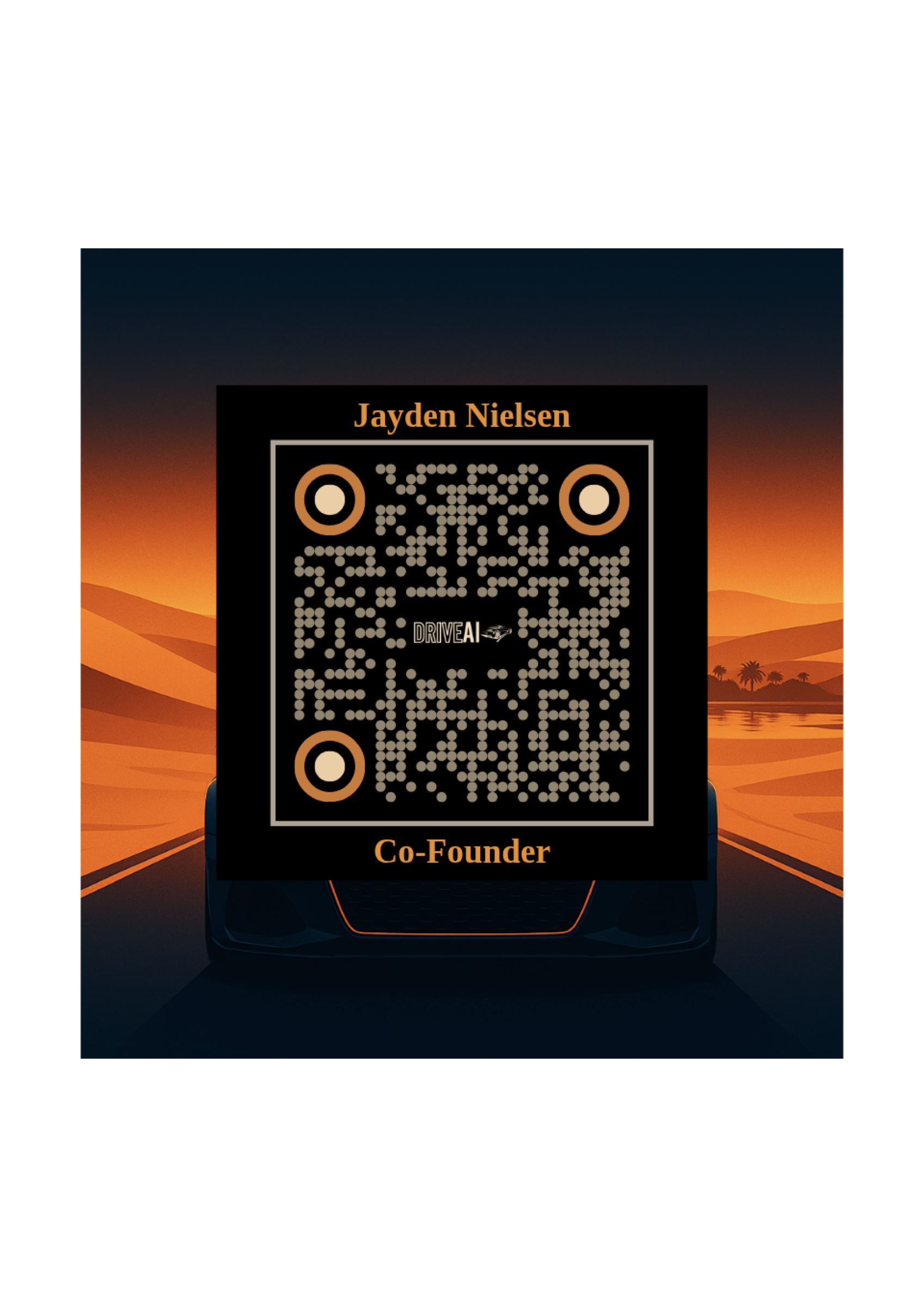
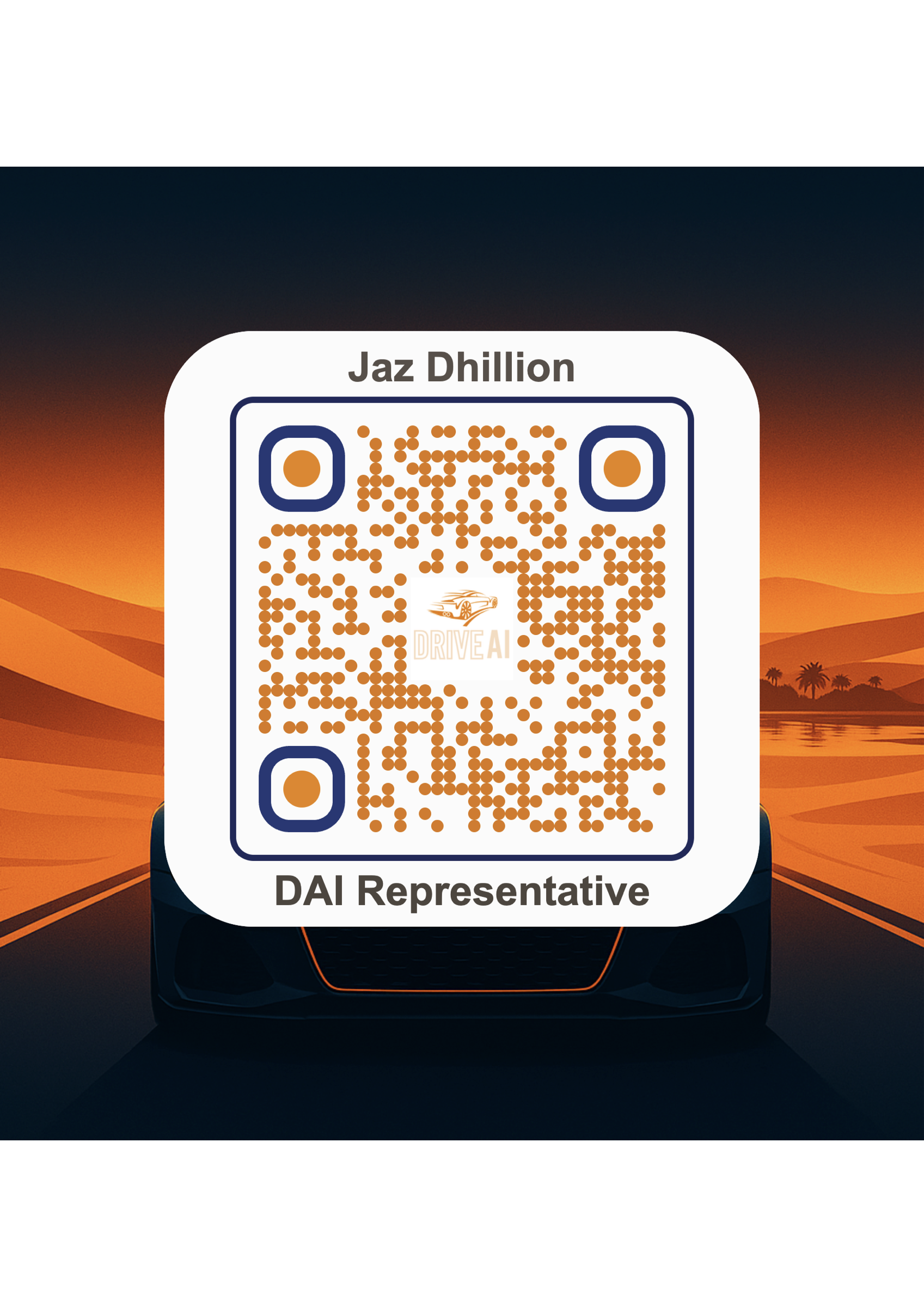
team/[name].pdfSave Your Card as Phone Wallpaper
Tap "Save as Wallpaper" on your card above, then follow the steps below. The play: prospect scans your lock screen, no business card needed.
Set your Drive AI card as your phone lock screen, enable always-on display. Walk up to a dealer principal, tap your phone screen on. The QR is right there at thumb level. They scan, save your contact, and send you a text in one motion. No fumbling, no business-card hand-off, no typing. Cards are insurance. The lock screen is the play.
- Tap Save as Wallpaper on your card. Image saves to Photos.
- Open Settings → Wallpaper → Add New Wallpaper.
- Pick Photos, choose your Drive AI card.
- Pinch-zoom to position the QR above the clock area, drag to center.
- Tap Set as Wallpaper Pair (applies to lock + home).
- Bonus: Settings → Display & Brightness → Always On → Enable. QR scannable without unlocking.
- Tap Save as Wallpaper on your card. Image saves to Gallery.
- Long-press anywhere on the home screen, tap Wallpapers.
- Pick My Wallpapers / Gallery, choose your Drive AI card.
- Choose Set on Lock Screen (or both if you want home too).
- Position the QR vertically with the crop handles.
- Bonus: Settings → Display → Always On Display → Enable.
/r/[your-id] page cleanly. If the screen brightness is too low, the QR won't read.
How to add a new teammate
- Generate the QR card PDF (matching the Drive AI desert-sunset template).
- Save the PDF to
team/firstname-lastname.pdfin this repo. - Render the wallpaper-quality PNG:
sips -s format png --resampleHeightWidthMax 2400 team/firstname-lastname.pdf --out team/firstname-lastname.png - Duplicate the
<div class="member">block inteam.html, update name + role + file paths. - Run
./deploy.shfrom the repo root. New teammate goes live in ~30 seconds.
driveaisales.com/r/jayden. Before printing a new rep's cards, make sure their landing page is live and the rep is set up to receive inbound SMS.